Install Sumi manually in Chrome
Our beta build as a direct download. Four steps, about a minute — no account needed to install.
About 510 KB. Updates by re-downloading — check back for new versions.
- 1
Download and unzip
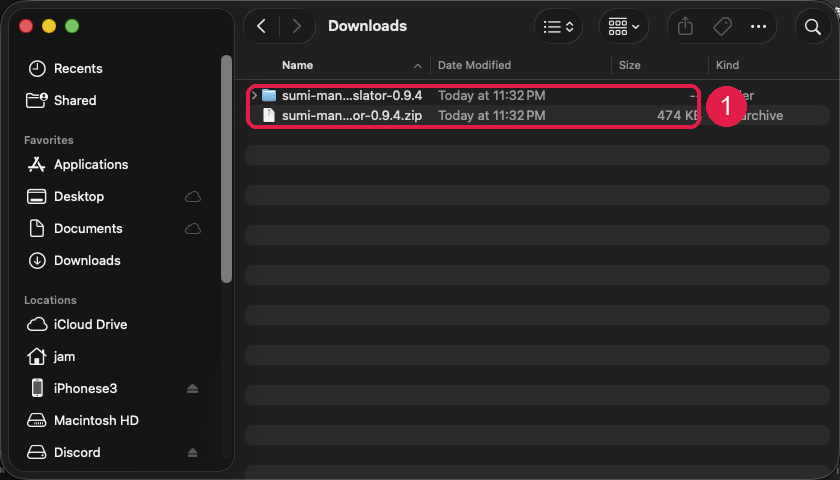
Download the .zip above, then double-click it in your Downloads folder. You get a folder named sumi-manga-translator-0.9.19.
Keep that folder where it is — Chrome loads the extension from it, so deleting the folder disables the extension.
On Windows, right-click the .zip and choose “Extract All…” — loading from inside the zip window does not work.
- 2
Turn on Developer mode
Open a new tab and go to
chrome://extensionsthen switch on “Developer mode” in the top-right corner (1). A new row of buttons appears — click “Load unpacked” (2).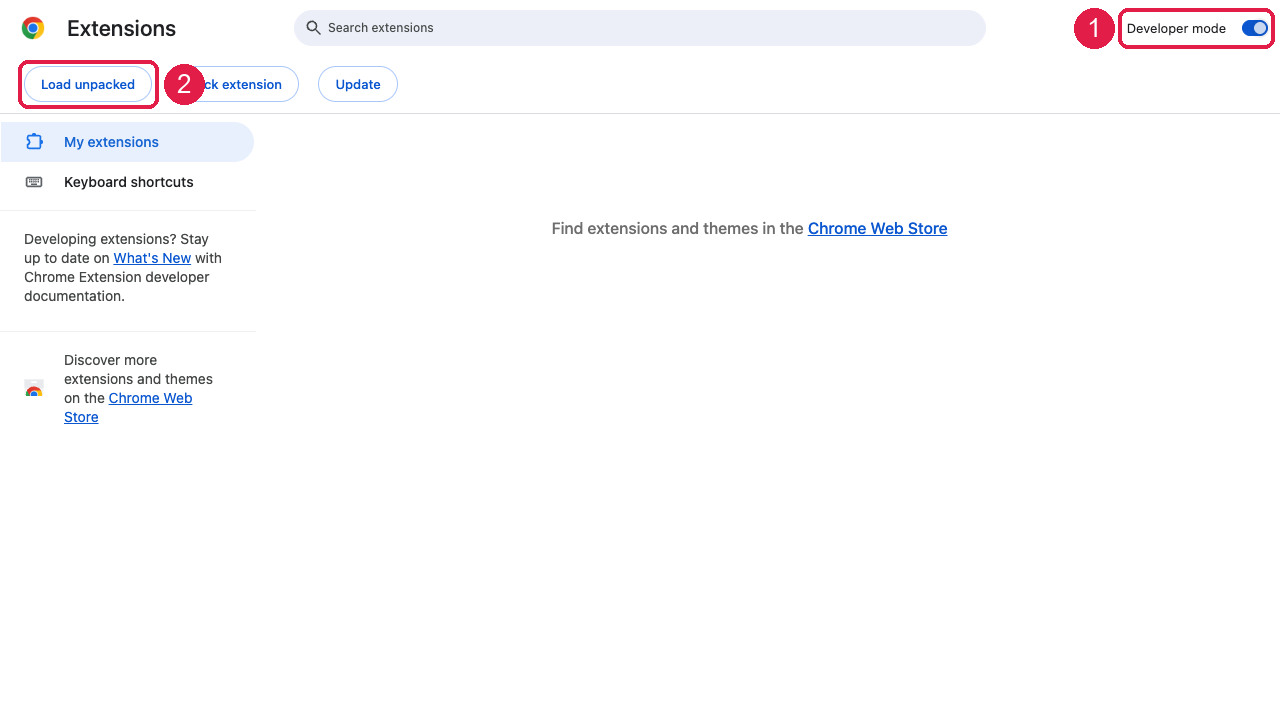
- 3
Pick the unzipped folder
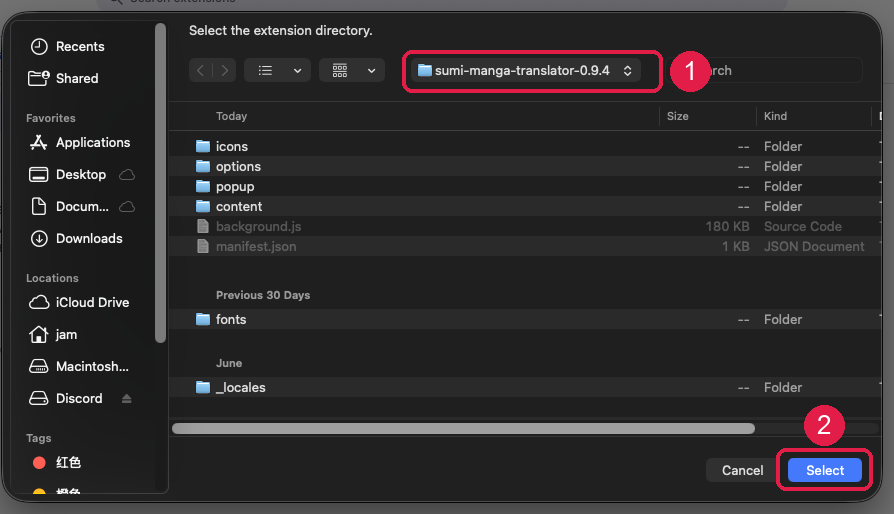
In the file dialog, choose the sumi-manga-translator-0.9.19 folder you unzipped in step 1 (1), then press Select (2). Pick the folder itself — not the .zip.
- 4
Done — check the version
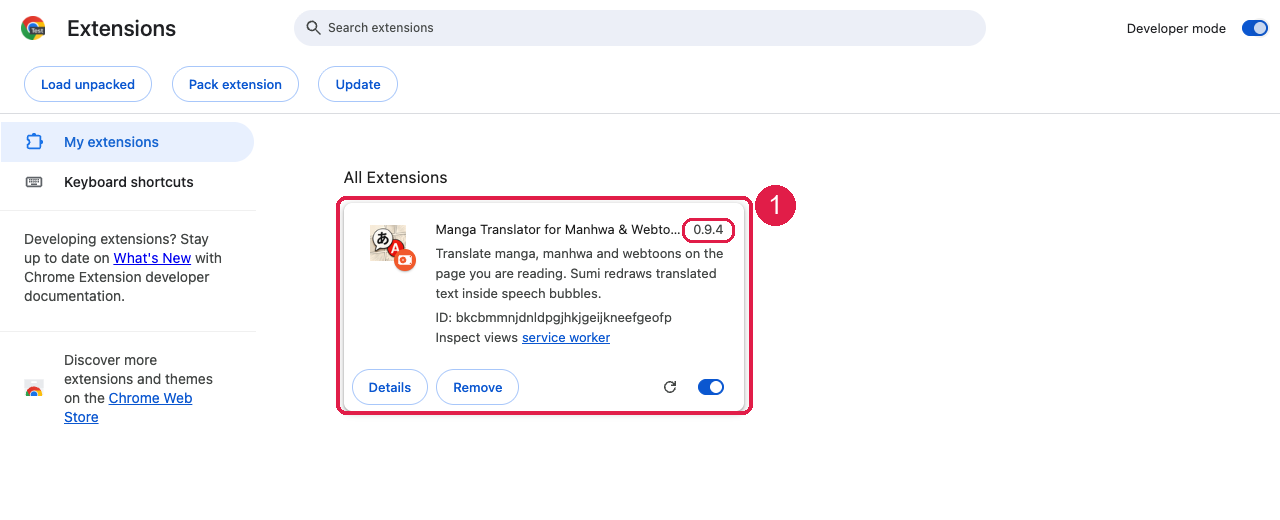
The Sumi card appears with version 0.9.19 and the toggle on. Open any manga page and the familiar Sumi controls are back.
Tip: click the puzzle-piece icon in the Chrome toolbar and pin Sumi so the button stays visible.
- 5
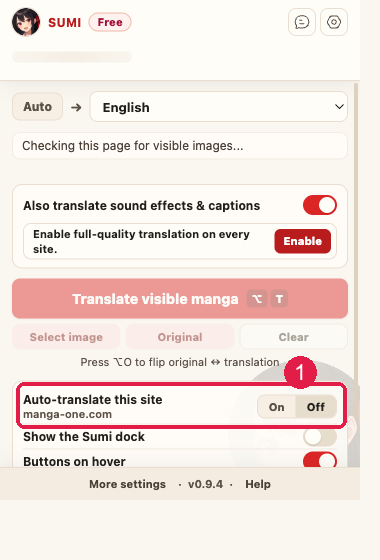
Turn on auto-translate for your manga site
Open the site you read on, click the Sumi icon, and switch “Auto-translate this site” to On (1). From then on, every page you open there translates by itself — without this, you would have to click Translate on every page.
- 6
Allow site access when Chrome asks
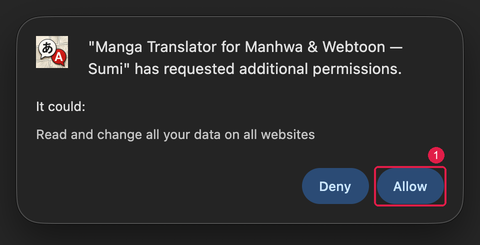
The first time you turn that on, Chrome asks for permission with a dialog like this. Click Allow (1).
The wording — “read and change all your data on all websites” — is Chrome’s standard text for this permission. Sumi only acts on the sites you switched on, and never collects your browsing history.
Good to know
Chrome asks about “developer mode extensions” after a restart+
Chrome periodically reminds you that a manually-installed extension is present. Choose to keep it — nothing is wrong.
Will I lose my account or balance?+
No. Your plan and balance live in your Sumi account on the server. Connect the extension to your account once and everything is back.
What happens when the store update is approved?+
Install the store version, then remove this manual one from chrome://extensions (Remove on the card) so you don’t have two copies. Store updates resume automatically from then on.
Is a manual install safe?+
It is the same reviewed package we ship to the Chrome Web Store — byte for byte. Manual loading only skips the store’s distribution, not our testing.